This English version of the course material has been machine translated from the Finnish original and may contain errors. If something is unclear, check the Finnish version of this page.
Using Flask and a database in the mini project
The mini project application is implemented with the Flask framework familiar from the course Tietokannat ja Web-ohjelmointi (Databases and Web Programming), and it must store its data in a database. The template uses an SQLite database, which does not require setting up a separate database server.
Configuring a Flask application so that, for example, automated testing with GitHub Actions works is somewhat challenging, and for this reason a template https://github.com/ohjelmistotuotanto-hy/miniprojekti-boilerplate has been created for the course to help you get started.
The template contains a simple Todo list application that stores its data in an SQLite database, a few Robot tests, a unit test made with the unittest library, and a GitHub Actions workflow that runs the tests.
If you want to avoid the pain caused by configuration, it is recommended that you build your own application following the template, read also Protips!
You should do the exercises of week 3 before you start coding the mini project!
Functionality of the application
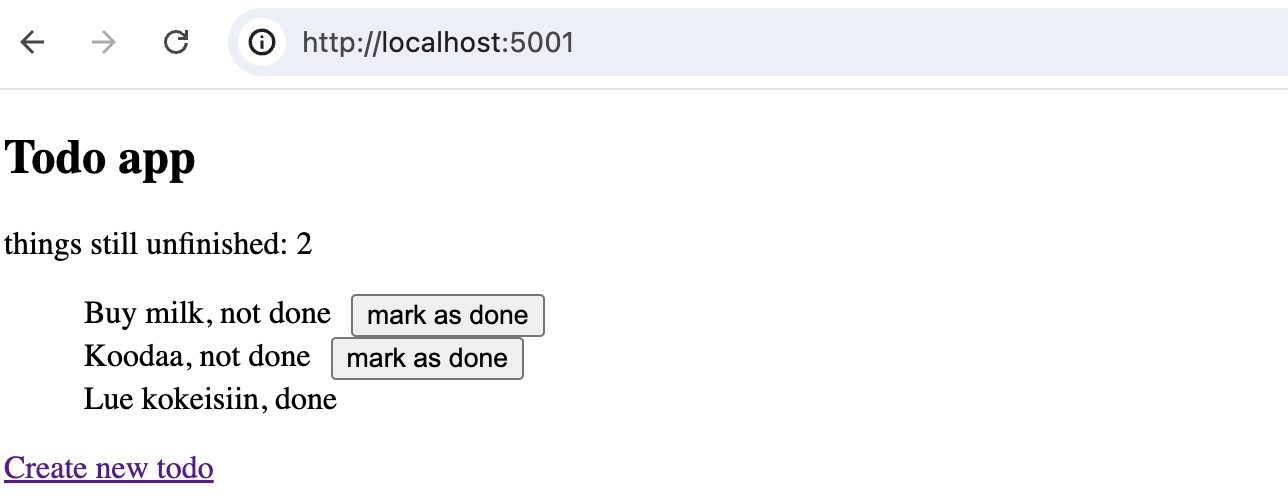
The functionality offered by the application is very limited. The application shows the Todos and their status, and makes it possible to mark an unfinished task as done:
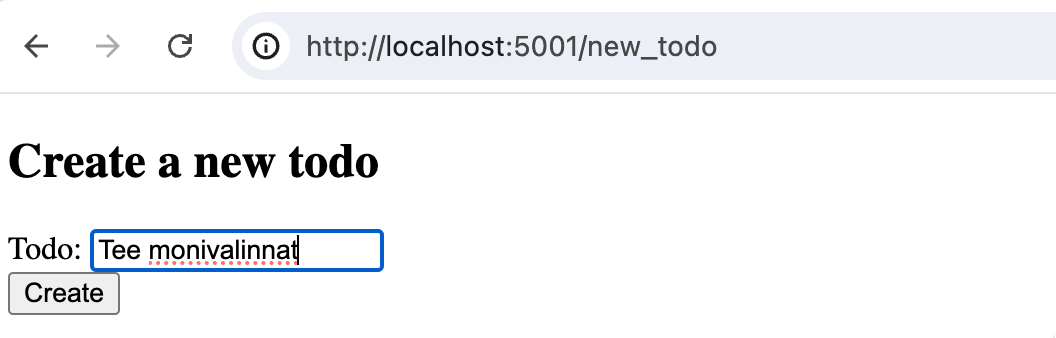
The user can also create new Todos:
Unfortunately, the application offers no other functionality.
Database
The application uses an SQLite database. An SQLite database is just a file on disk, so using it requires neither a separate database server nor a cloud service.
A file named .env that defines environment variables must be created in the root of the application, with the following contents
DATABASE_URL=sqlite:///database.db
TEST_ENV=true
SECRET_KEY=satunnainen_merkkijono
The DATABASE_URL variable defines the name and location of the database file. The value above creates the file database.db in the root of the application. The file must not be added to version control.
Starting the application
The application is started in the uv virtual environment with the command
uv run python src/index.py
Note that before you start the application for the first time, you must run a command that creates the database table used by the application:
uv run python src/db_helper.py
The unit tests are run with the command:
uv run pytest src/tests
The Robot tests are run with the command:
uv run robot src/story_tests
Structure of the application
In structure, the application is similar to the WebLogin application of the week 3 exercises. The application is divided into the following files
├── index.py
├── app.py
├── config.py
├── util.py
├── db_helper.py
├── entities
│   └── todo.py
├── repositories
│   └── todo_repository.py
├── templates
│   ├── index.html
│   ├── layout.html
│   └── new_todo.html
├── story_tests
│   ├── resource.robot
│   └── todos.robot
└── tests
│   └── validate_todo_test.py
index.pyis the file that starts the applicationapp.pycontains the route handlersconfig.pycontains, among other things, the configuration of the Flask application and the databaseutil.pycontains a helper function used to validate the Todos being addeddb_helper.pycontains a few database operations used for setting up the application’s test environment- the directory
entitiescontains the classes that describe the application’s data - the directory
repositoriescontains the classes responsible for storing the data in the database - the directory
templatescontains the view templates - the Robot tests are placed in
story_testsand the unit tests intests
Using the database
So the database operations related to Todo objects are encapsulated in the file repositories/todo_repository.py. For example, the function that fetches all Todos from the database looks like this:
from entities.todo import Todo

def get_todos():
    result = db.session.execute(text("SELECT id, content, done FROM todos"))
    todos = result.fetchall()
    return [Todo(todo[0], todo[1], todo[2]) for todo in todos]
So the function returns the rows it fetched with SQL as objects of the class Todo. The class is defined in the file entities/todo.py
class Todo:
    def __init__(self, id, content, done):
        self.id = id
        self.content = content
        self.done = done

    def __str__(self):
        is_done = "Done" if self.done else "not done"
        return f"{self.content}, {is_done}"
Other parts of the program (e.g. app.py) therefore do not handle database rows directly but objects created from them. This way, from the point of view of the rest of the program, it does not matter where the objects are ultimately stored, and the storage method could also be changed if needed.
The file db_helpers.py contains a few helper functions needed mainly by the tests:
from config import db, app
from sqlalchemy import text
import os

def reset_db():
  print(f"Clearing contents from table todos")
  sql = text(f"DELETE FROM todos")
  db.session.execute(sql)
  db.session.commit()

def tables():
  """Returns all table names from the database"""
  sql = text(
    "SELECT name FROM sqlite_master "
    "WHERE type = 'table' AND name NOT LIKE 'sqlite_%'"
  )

  result = db.session.execute(sql)
  return [row[0] for row in result.fetchall()]

def setup_db():
  """
    Creating the database
    If database tables already exist, those are dropped before the creation
  """
  tables_in_db = tables()
  if len(tables_in_db) > 0:
    print(f"Tables exist, dropping: {', '.join(tables_in_db)}")
    for table in tables_in_db:
      sql = text(f"DROP TABLE {table}")
      db.session.execute(sql)
    db.session.commit()

  print("Creating database")

  # Read schema from schema.sql file
  schema_path = os.path.join(os.path.dirname(__file__), 'schema.sql')
  with open(schema_path, 'r') as f:
    schema_sql = f.read().strip()

  sql = text(schema_sql)
  db.session.execute(sql)
  db.session.commit()

if __name__ == "__main__":
    with app.app_context():
      setup_db()
The function setup_db creates the database. The database schema is defined in the file schema.sql. In practice, the database contains only the table todos. If the database already exists when the function setup_db is called, the tables of the database are dropped and the database is created again. The function reset_db empties the contents of the database table. If the file is run as the “main program”, it creates the database.
Initialising and running the tests
The Robot tests are configured in the same way as in exercise 4 of week 3, i.e. the tests are run with the script run_robot_tests.sh. The script now has a small difference compared to before
#!/bin/bash

echo "Running tests"

# create the database
uv run python src/db_helper.py

echo "DB setup done"

# start the Flask server in the background
uv run python3 src/index.py &

echo "started Flask server"

# continues in the same way as in exercise 4 of week 3
Before starting the application, the script runs the command python src/db_helper.py, which creates the table todos needed by the application in the database attached to GitHub Actions. In practice, this is done by running the following SQL command:
CREATE TABLE todos (
  id INTEGER PRIMARY KEY AUTOINCREMENT,
  content TEXT NOT NULL,
  done BOOLEAN DEFAULT FALSE
)
Test Setup defines that the keyword Reset Todos is run before each test (Test Setup):
*** Settings ***
Resource  resource.robot
Suite Setup      Open And Configure Browser
Suite Teardown   Close Browser
Test Setup       Reset Todos

# ...

*** Keywords ***
Reset Todos
    Go To  ${RESET_URL}
The command makes an HTTP request to the address reset_db, whose handler calls the function reset_db, which takes care of emptying the database:
from db_helper import reset_db

# ...

# route meant for testing
if test_env:
    @app.route("/reset_db")
    def reset_database():
        reset_db()
        return jsonify({ 'message': "db reset" })
This route handler is meant to be used only by the tests. The route handler is not created at all if the environment variable TEST_ENV is set to false in the file .env:
DATABASE_URL=sqlite:///database.db
TEST_ENV=false
SECRET_KEY=satunnainen_merkkijono
You should make this setting when the application is deployed to a real production environment.
About the tests
The automated testing of the application has mostly been done with Robot. In addition to the Robot tests, the application has a few unit tests implemented with the unittest library, which test the helper function validate_todo defined in the file util.py; it checks whether the content of the Todo being created has the right length (5-100 characters). In principle, more unit tests could have been written for the application, but since most of the application’s code deals with the database or HTTP requests, it is more convenient to do the testing with Robot tests that simulate the user’s actions.
In the mini projects there may be somewhat more functionality (e.g. generating BibTeX) that is worth testing with unit tests.
So the guiding idea is that Robot Framework and unit tests are both used for what makes sense for them. For an application like this to have code that can sensibly be tested with unit tests at all, you should do the following:
- Isolate the parts of the code that have their own responsibility so that they are independent of the other parts.
- In particular, do not mix database and user interface operations with the rest of the code.
- The parts encapsulated separately from the database and the user interface may well be worth testing with unit tests.
- For example, it is hardly worth unit testing the classes that handle the database in software of this size, since Robot Framework coverage takes care of them.
The Robot tests work on the same principle as in the week 3 exercises.
One of the tests is a bit more interesting. The test creates two Todos and clicks the button related to one of them. So the situation is the following:
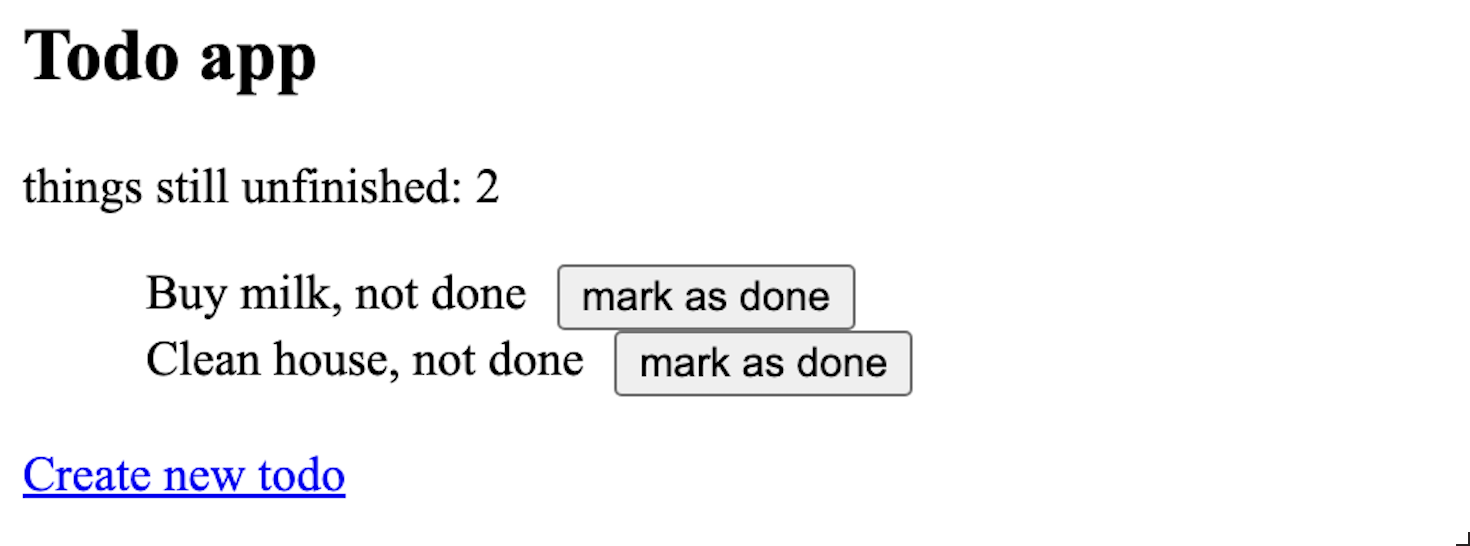
Finding the button to press is not possible based on the button text alone, since there are two buttons with the same text. The test looks like this
After adding two todos and marking one done, there is one unfinished
    Go To  ${HOME_URL}
    Click  text=Create new todo
    Fill Text  [name="content"]  Buy milk
    Click  button >> text=Create
    Click  text=Create new todo
    Fill Text  [name="content"]  Clean house
    Click  button >> text=Create
    Click  //li[div[contains(text(), 'Buy milk')]]/form/button
    Get Text  body  *=  things still unfinished: 1
    Get Text  body  *=  Buy milk, done
The right button has now been found using XPath, which is one of the ways supported by the Browser library for finding elements on web pages. The library recognises an XPath selector automatically from the fact that it starts with the characters //.
I figured out the solution with the help of ChatGPT. As the prompt, I gave the view template and the question of how to press the button related to a specific Todo in a Robot test. The AI kindly gave the right answer and an explanation of how the XPath expression works:
The XPath
//li[div[contains(text(), 'Specific Todo Content')]]/form/buttonis used to locate the button within the form for the specific todo item that is not done. Adjust the XPath as necessary to match the acual structure of your HTML.Here is a more detailed breakdown of the XPath:
//li[div[contains(text(), 'Specific Todo Content')]]
   Selects the <li> element that contains a <div> with the specified text.
/form/button
   Selects the <button> element within the <form> inside the selected <li>.
You can read more about the ways to find elements in tests in the Browser library’s documentation.
Protips
You should build your mini project either by copy-pasting the configuration of the boilerplate or by copying the project for yourself and modifying it suitably.
Proceed in really small steps and push your code to GitHub often.
The application must AT ALL TIMES be kept in a state where all tests pass in GitHub Actions. If GitHub Actions goes red, under no circumstances add code before the problems have been fixed.
If you end up coding for e.g. 2 hours and only then try to get the tests to work, you will probably spend at least 4 hours debugging. If, on the other hand, you code for only 5 minutes and then check whether the tests pass, the time spent on debugging is perhaps just a minute. So small steps mean big savings in time.