This English version of the course material has been machine translated from the Finnish original and may contain errors. If something is unclear, check the Finnish version of this page.
Pylint and static code analysis
This guide is a copy of the Pylint guide of the course Ohjelmistotekniikka (Software Development Methods), with a few additions. The linked original is in Finnish.
In addition to testing your code, maintaining code quality is important. Quality can be maintained with various manual methods, such as documenting quality requirements and doing code reviews. However, in large software projects many manual quality assurance methods often turn out to be too time-consuming and error-prone. Static analysis is a method that makes it possible to analyse code automatically without having to run it. Static analysis is widely used in software development, for example to spot programming errors and to perform quality checks.
One widely used tool for static analysis of Python code is Pylint. With Pylint we can define various requirements for code quality and automatically check whether the code being checked follows these rules.
Pylint is a tool that checks for errors in Python code, tries to enforce a coding standard and looks for code smells. It can also look for certain type errors, it can recommend suggestions about how particular blocks can be refactored and can offer you details about the code’s complexity.
Setting up Pylint in a project
Pylint is easy to set up in a uv project. Let’s start by installing Pylint as a development dependency of our project:
uv add pylint --dev
Pylint needs a set of rules to check. The rules are defined in the .pylintrc file in the project’s root directory. Create the file and copy the contents of this file into it. The file contains a slightly modified version of the configuration recommended by Pylint, which you can view with the command pylint --generate-rcfile.
You can run Pylint’s quality checks from the command line by first entering the virtual environment with the command source .venv/bin/activate and then running the command pylint src. The command must be run in the project’s root directory, i.e. the same directory where the pyproject.toml file is. The command runs the quality checks in the src directory. Pylint gives the code a “grade” based on its quality, which you can find at the end of the output:
Your code has been rated at 10.00/10 (previous run: 10.00/10, +0.00)
Disabling quality checks
As a rule, you should do your best to fix the quality issues Pylint points out. This almost always leads to better code. In some situations, however, we can accept quality issues and disable the checks. There are several ways to do this.
Take, for example, the following src/index.py file:
def main():
    X = 3
    print(X)

main()
Running the command pylint src reveals that Pylint finds the following error in the file:
src/index.py:1:0: C0103: Variable name "X" doesn't conform to snake_case naming style (invalid-name) (invalid-name)
So on line one of the file src/index.py there is a badly named variable. The name of the rule being broken in this case is invalid-name. The most sensible thing would be to simply rename the variable to x, but let’s illustrate how the rule check can be disabled for a line. Add the following comment to the line:
def main():
    X = 3 # pylint: disable=invalid-name
    print(X)
Now running the command pylint src should tell you that no errors are found anymore.
We can also exclude whole directories and files from the checks by editing this line in the .pylintrc file. For example, we can exclude the user interface code in the directory src/ui and the tests in the directory src/tests from the checks:
ignore-paths=src/ui,src/tests
Editor integration
Many editors have extensions that point out quality issues directly in the code. This makes spotting and fixing them faster. If you use Visual Studio Code, it is enough to install the Pylint extension:

After this, Visual Studio Code (which you may need to restart after installing the extension) should point out quality issues directly in the code with a blue underline. Hovering the mouse over the problematic code should open more detailed information about the issue:
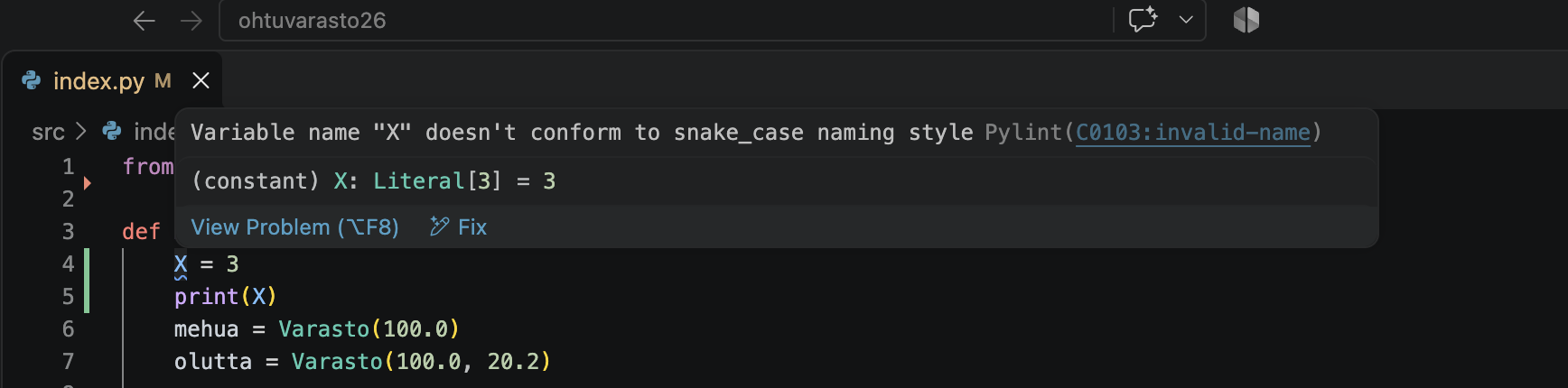
If you run into problems with the integration, see Visual Studio Code’s documentation.
Bonus: automatic formatting
Fixing certain quality issues, such as indentation and overly long lines of code, sometimes causes unnecessary manual work. The autopep8 library helps with formatting code automatically. The library formats code automatically according to the PEP 8 style guide. Let’s start using it by installing it as a project dependency:
uv add autopep8 --dev
After this, in the virtual environment, we can format the code in the src directory with the command:
autopep8 --in-place --recursive src
Many editors also let you format code conveniently with a single keyboard shortcut. Instructions for formatting code in Visual Studio Code can be found here.