This English version of the course material has been machine translated from the Finnish original and may contain errors. If something is unclear, check the Finnish version of this page.
Poetry in Docker
The best way to install Poetry is not to install it at all! More precisely, we do not install Poetry directly on our own machine, but instead use a Docker image that contains Python and Poetry and run the commands inside a Docker container created from the image.
Below we go through two ways: using the Docker image made for the course, and VS Code’s Dev Containers.
Using the Docker image
If you want to use Docker “directly”, you can use the Docker image mluukkai/poetry configured for the course, see also the GitHub repository.
Poetry is used as follows. Go to the directory where you want to run Poetry commands. You will (probably) have to give Docker read and write permissions to the directory’s contents with the command:
chmod o=rw .
Run the following command
docker run -it --volume="$PWD:/mydir" mluukkai/poetry:intel
If your machine is an M1 Mac, the command looks like this:
docker run -it --volume="$PWD:/mydir" mluukkai/poetry:m1
The command opens a shell in the Docker container, where all Poetry commands, e.g. poetry init, poetry add, eval $(poetry env activate) etc., are available. There is also an alias activate for starting the virtual environment.
The container sees all the files in the directory where it was started. You can edit the files as usual with a text editor outside the container. The shell in the Docker container is closed with the command exit.
More about Docker in the course DevOps with Docker.
Visual Studio Dev Containers
VS Code’s Dev containers extension offers a very clean and easy-to-use way of using Docker in software development.
If you have Docker on your machine, using Dev Containers is very easy.
Start by installing the Dev Containers extension:

Setting up a development environment for an existing Poetry project is done as follows, following these instructions:
Open a directory containing a Poetry project in VS Code.
Run the command Dev Containers: Open Folder in Container:
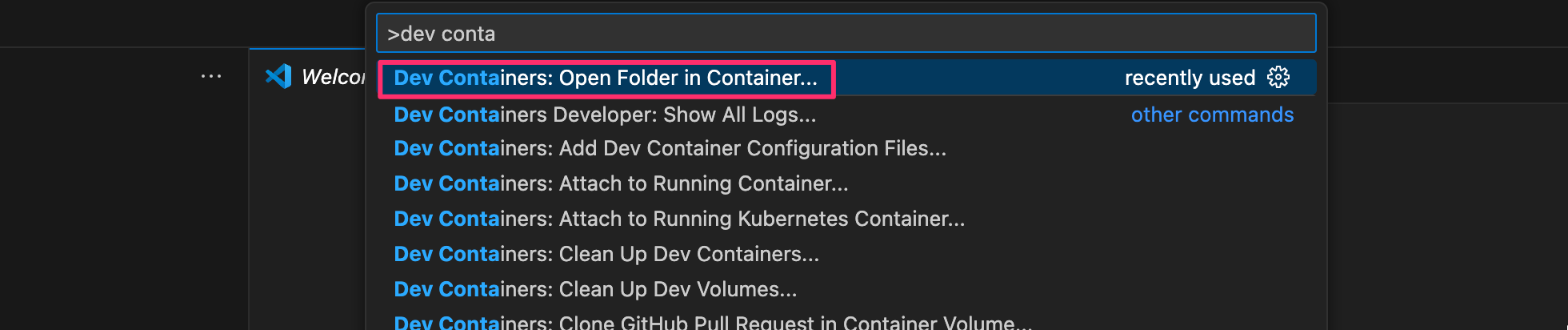
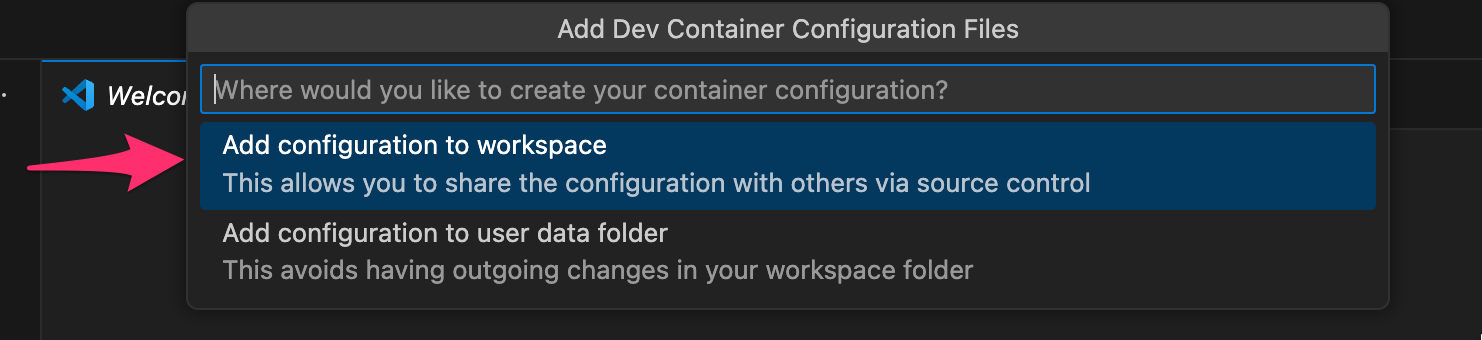
Open the current directory and choose the first option, which saves the development environment configuration in the current directory:
Poetry is not offered right away, so choose Show all templates:
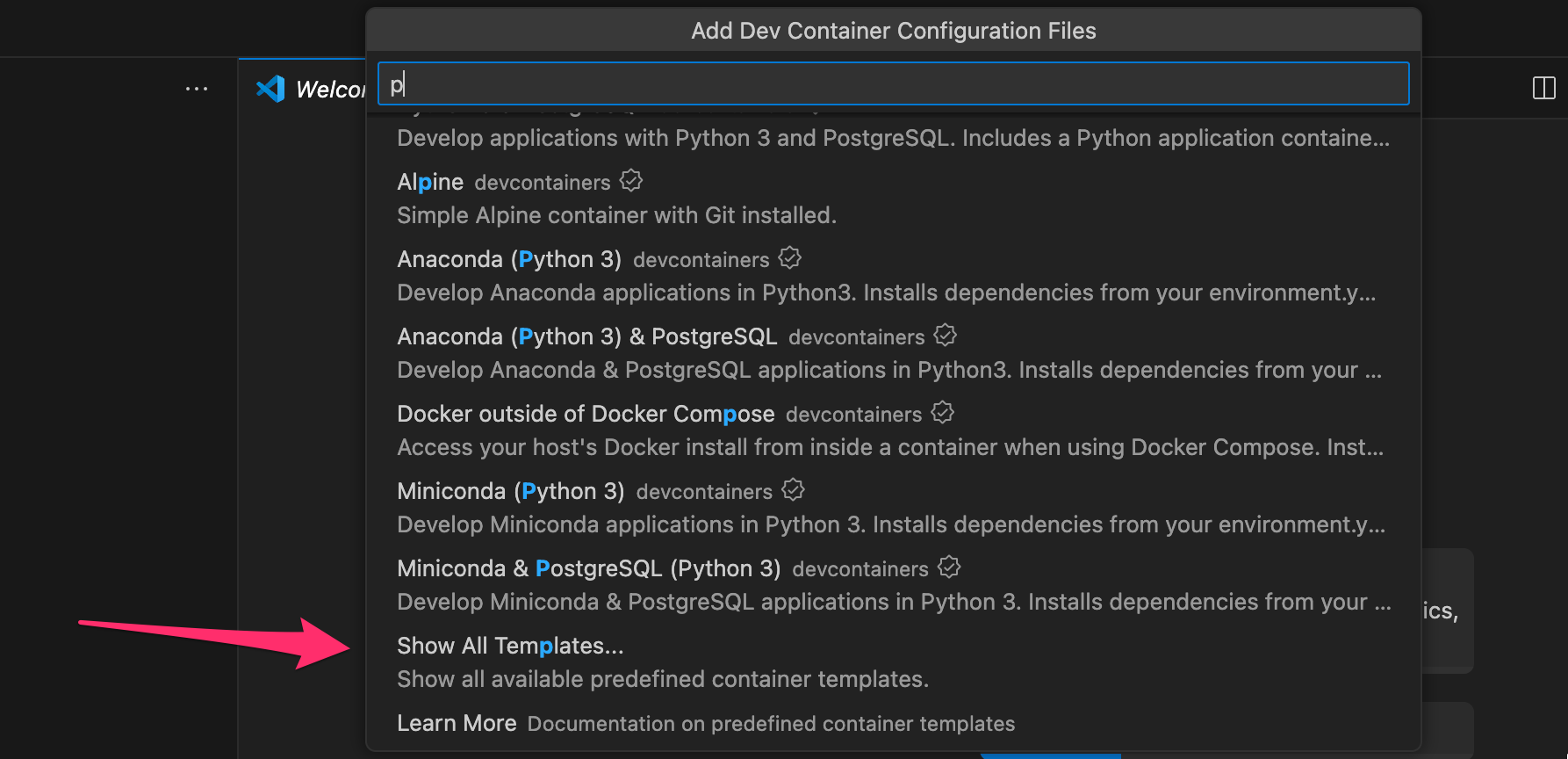
After this, we find what we want:

Next, choose the Python version. Unfortunately, the newest Python version offered is 3.11. For the following choices, pick default and ok.
It takes a while until the environment is ready. After that, Poetry is available through VS Code’s terminal:
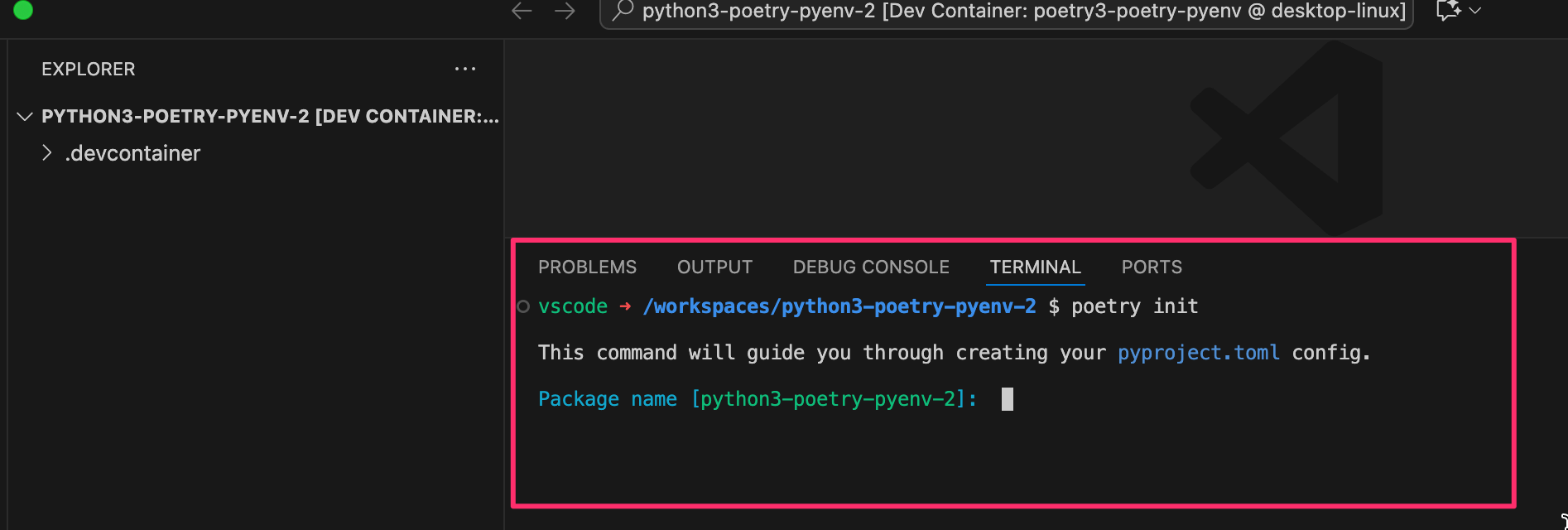
Nothing else is needed!
Dev Containers stores the development environment’s details in the directory .devcontainer in the project root. The directory contains the configuration file .devcontainer.json and the file Dockerfile, which together define the development environment.
The preconfigured Python with Poetry environment now uses Python version 3.11. The version is in fact easy to update by changing one line in the Dockerfile:
FROM mcr.microsoft.com/devcontainers/base:jammy

//...

# Python and poetry installation
USER $USER
ARG HOME="/home/$USER"
ARG PYTHON_VERSION=3.11. # change this to 3.12

ENV PYENV_ROOT="${HOME}/.pyenv"
ENV PATH="${PYENV_ROOT}/shims:${PYENV_ROOT}/bin:${HOME}/.local/bin:$PATH"

// ...
After the change, VS Code rebuilds the image, and after that the Python of the development environment has been updated!
The next time you return to the project, choose Dev Containers: Reopen in Container:

Docker and Robot tests
The Robot tests of web applications use the Browser library, and the browser it uses must be installed inside the container. Once the project’s dependencies have been installed, the browser and the operating system libraries it needs are installed in the container with the command:
uv run rfbrowser install --with-deps chromium
For a web application running in the container to be visible to the host machine, the container’s port 5001 (where the application runs) must be published to a port on the host machine when the container is started. This is done as follows:
docker run -it -p 5001:5001 --volume="$PWD:/mydir" mluukkai/poetry
The Robot tests are run by entering, with the command docker exec, the same container where the application is already running:
docker exec -it kontainerintunnistetahan bash
You can find out the container’s identifier with the command docker ps.
Unfortunately, the tests only work in so-called headless mode, which you can turn on as instructed at the beginning of exercise 4.
It is also possible to get the tests to work so that the browser running the tests is shown. This, however, requires a fair amount of tinkering; if you are interested, google it with search terms such as linux docker gui apps.